Integrations
Connect Taicho with MCP
Use Taicho from Claude, Codex, Cursor, or another OAuth-capable MCP client.
Get your connection details#
- As a workspace owner or administrator, open Manage → Settings in Taicho. Workspace members can use the Taicho Cloud URL below or ask an administrator for deployment-specific details.
- Find MCP access and copy the MCP server URL.
- Add that URL to your MCP client as a Streamable HTTP or remote server.
- Select Connect or Authenticate in the client.
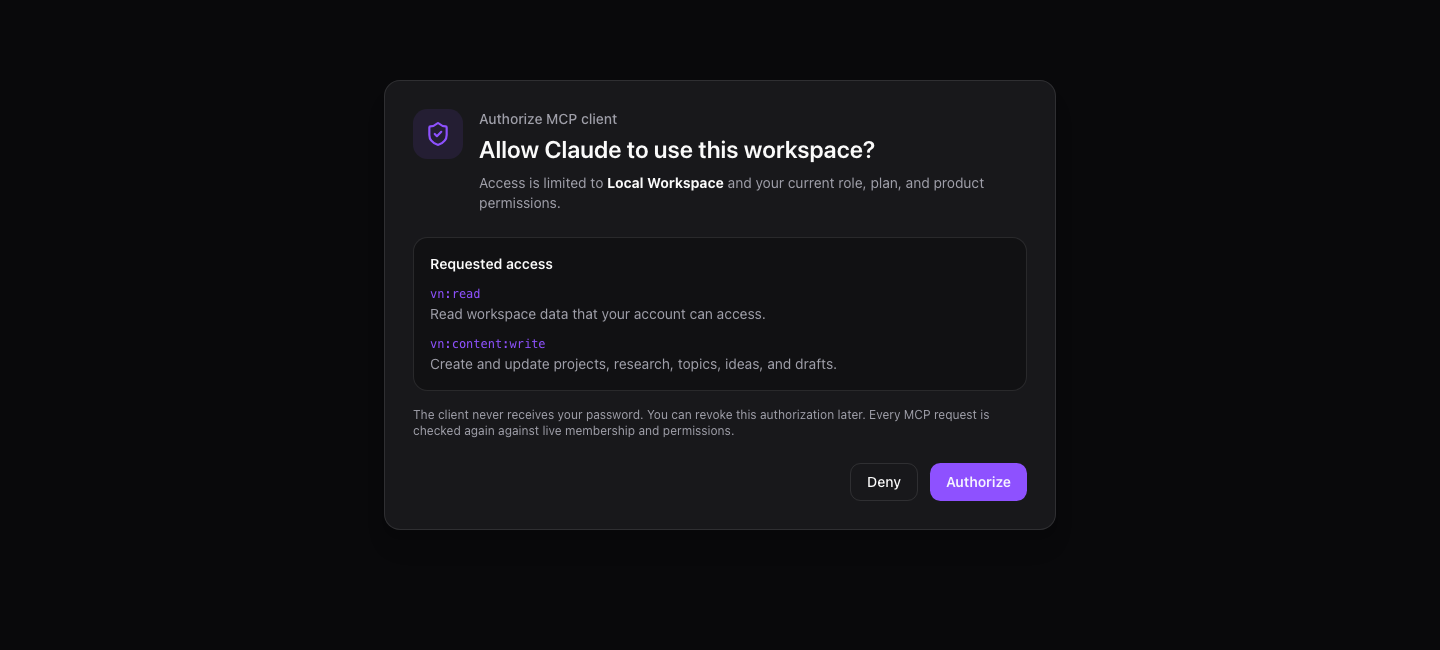
- Sign in to Taicho, choose the workspace to connect, review the requested scopes, and select Authorize.
For Taicho Cloud, the server URL is:
https://cloud.taicho.ai/api/mcp
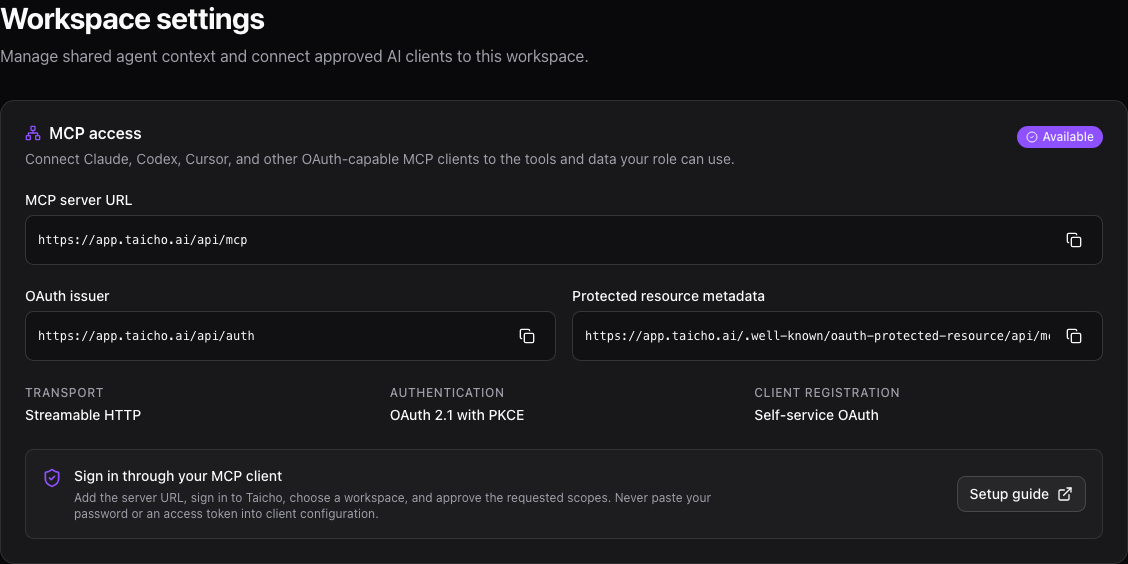
The settings card also shows whether your deployment uses Self-service OAuth or Managed OAuth. In managed mode, your deployment administrator must provide registered client details if your MCP client asks for a client ID.
Connect Claude#
Claude connects to Taicho as a remote custom connector. This works in Claude on the web and in Claude Desktop; the connection originates from Anthropic's cloud, so a self-hosted Taicho endpoint must use HTTPS and be reachable from the public internet.
Individual Free, Pro, or Max account#
- Open Customize → Connectors.
- Select +, then Add custom connector.
- Name the connector
Taicho. - Paste the MCP server URL from Taicho settings.
- Select Add, then complete the Taicho sign-in and consent flow.
- In a conversation, use + → Connectors to enable Taicho.
Free accounts may be limited to one custom connector. See Claude's current remote custom connector guide for availability and network requirements.
Team or Enterprise workspace#
A Claude Owner or Primary Owner first opens Organization settings → Connectors, selects Add → Custom → Web, and enters the Taicho MCP server URL. Members can then open Customize → Connectors, find Taicho, and select Connect.
If Claude shows Advanced settings for an OAuth client ID and secret, use only credentials issued for that Claude connector by your Taicho deployment administrator. Do not use a service-principal secret intended for unattended automation.
Connect Codex or the ChatGPT desktop app#
The ChatGPT desktop app, Codex CLI, and Codex IDE extension share MCP configuration on the same machine.
ChatGPT desktop app or Codex IDE extension#
- Open Settings → MCP servers.
- Select Add server.
- Name it
Taicho, choose Streamable HTTP, and paste the MCP server URL. - Save and restart the app or extension.
- Select Authenticate beside Taicho and complete the OAuth flow.
Codex CLI#
codex mcp add taicho --url https://cloud.taicho.ai/api/mcp
codex mcp login taicho --scopes vn:read
codex mcp list
You can also place the server in ~/.codex/config.toml:
[mcp_servers.taicho]
url = "https://cloud.taicho.ai/api/mcp"
auth = "oauth"
scopes = ["vn:read"]
Use /mcp inside Codex to confirm that the server is connected. See OpenAI's
current MCP configuration guide
for client-specific controls and tool approval settings. Add only the write
scopes your workflow needs before authenticating again.
ChatGPT Work on the web uses remote MCP tools supplied by installed plugins; it does not read your local Codex configuration. A workspace administrator must install or approve the corresponding MCP-backed plugin before Taicho tools appear there.
Connect Cursor#
Add a global server in ~/.cursor/mcp.json, or add the same configuration to
.cursor/mcp.json in a trusted project:
{
  "mcpServers": {
    "taicho": {
      "url": "https://cloud.taicho.ai/api/mcp"
    }
  }
}
Open Cursor's MCP settings, find taicho, and select Connect to complete OAuth. Cursor supports both Streamable HTTP and OAuth for remote servers. See the current Cursor MCP guide for configuration locations and tool approval controls.
Connect another MCP client#
Choose a client that supports all of the following:
- remote Streamable HTTP transport;
- OAuth authorization code with PKCE;
- OAuth protected-resource and authorization-server metadata discovery; and
- the MCP protocol version advertised by the server.
Enter only the MCP server URL first. A compatible client discovers the authorization server from:
https://cloud.taicho.ai/.well-known/oauth-protected-resource/api/mcp
The authorization issuer is:
https://cloud.taicho.ai/api/auth
Do not copy access tokens into tracked configuration. OAuth clients should keep access and rotating refresh tokens in their secure credential store.
Choose the access you need#
The client asks for scopes during OAuth. Approve the smallest set that supports your workflow. Your Taicho role, enabled products, plan, and current workspace membership still apply even when a scope is granted.
| Scope | What it permits |
|---|---|
vn:read | Read the workspace data your account can access |
vn:ai:execute | Run credit-bearing AI and research operations |
vn:content:write | Create and update content projects, research, topics, ideas, and drafts |
vn:content:publish | Connect publishing destinations and manage scheduled posts |
vn:outreach:write | Manage contacts in outreach, personas, research, notes, and messages |
vn:cascade:write | Manage nurture journeys, enrollment, templates, and variants |
vn:workspace:write | Update the agent identity and assistant threads |
vn:integrations:write | Manage organization-owned outbound MCP connections |
vn:billing:write | Submit plan and credit requests |
vn:workspace:admin | Manage members, teams, service principals, and team credits |
An AI operation that changes a product requires vn:ai:execute and the
corresponding product write scope. Taicho never grants a client more access than
the signed-in person already has.
Use MCP from cloud automation#
Unattended services should use a dedicated organization service principal
instead of a person's OAuth session. A workspace owner creates the principal
from an authorized MCP session with oauth.service_principal.create, selects
its role and exact scope allowlist, and stores the returned secret immediately;
Taicho shows that secret only once.
The service exchanges its client credentials for a short-lived token:
curl --request POST \
  --user "$TAICHO_CLIENT_ID:$TAICHO_CLIENT_SECRET" \
  --header "Content-Type: application/x-www-form-urlencoded" \
  --data-urlencode "grant_type=client_credentials" \
  --data-urlencode "scope=vn:read" \
  --data-urlencode "resource=https://cloud.taicho.ai/api/mcp" \
  https://cloud.taicho.ai/api/auth/oauth2/token
Keep service principals separate by environment and workload. Never reuse one principal across Taicho organizations.
What the connection can do#
Tool and resource discovery adapts to the scopes and products available to the caller. Depending on access, clients can work with:
- workspace context, Brain, intelligence artifacts, and assistant threads;
- content projects, research, topics, ideas, drafts, and publishing;
- shared contacts, outreach research, qualification, notes, and messages;
- nurture journeys, templates, enrollment, and variants;
- automation definitions, runs, events, approvals, and artifacts; and
- organization members, teams, credits, and approved external integrations.
Long-running AI work returns an operation handle. Keep the client connected or poll the returned operation resource until it completes; do not repeat the mutation with a new idempotency key just because it is still running.
Troubleshoot a connection#
The client says registration is unauthorized#
The Taicho deployment is using managed OAuth. Ask its administrator for a registered client ID supported by your MCP client, or ask them to enable self-service client registration with registration rate limits.
OAuth opens, but tools are missing#
Reconnect and review the requested scopes. Tool discovery also hides capabilities your workspace role, product entitlements, or plan cannot use. Ask a workspace owner to confirm your role before requesting broader scopes.
Claude cannot reach a self-hosted server#
Claude's remote connector calls Taicho from Anthropic's cloud, even when you use Claude Desktop. Confirm that the MCP URL is public, uses a valid HTTPS certificate, and permits Anthropic's current published IP ranges through any firewall.
An AI operation stays queued#
This is a deployment issue rather than a client issue. Ask the deployment administrator to confirm that the Taicho MCP operation worker is running and healthy.
The client asks for an API key#
Taicho's inbound MCP server uses OAuth, not a static personal API key. Choose the client's OAuth or remote-server connection path. Do not use the organization's outbound-integration credentials.